Automation Above 60% Humidity
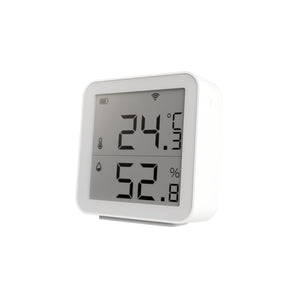
Your Smart hygrometer can notify you when humidity becomes too high.
Automation Overview
To create this automation, open the Smart Life app, go to the “Smart” tab in the footer, and tap the “+” icon.
Create a New Scene
Tap the “+” in the top right corner and select Create Scene.
Select Trigger Type
Choose “When device status changes.”
Choose Device Setup
Select “Select a single device.”
Select the Hygrometer
Choose your BULP Smart Hygrometer from the device list.
Set the Condition
Select Humidity → Greater than and set your preferred humidity level.
Add an Action
Tap Add Task to define what should happen when humidity is too high.
Choose Notification Action
Select Send notification.
Select Notification Method
Choose Message Center to receive the alert inside the app.
Save the Automation
Tap Save to activate the scene.
Name Your Scene
Give the automation a clear name, for example “Humidity >60% Too Humid.” Then tap Confirm.
Automation Below 40% Humidity
Your BULP Hygrometer can automatically trigger alerts when humidity levels change.
Automation Overview
To create this automation, open the Smart Life app, go to the “Smart” tab in the footer, and tap the “+” icon.
Create a New Scene
Tap the “+” in the top right corner and select Create Scene.
Select Trigger Type
Choose “When device status changes.”
Choose Device Setup
Select “Select a single device.”
Select the Hygrometer
Choose your BULP Smart Hygrometer from the device list.
Set the Condition
Choose Humidity → Less than and set your desired humidity level.
Create the Action
Tap Add Task to define what should happen when the condition is met.
Select Notification
Choose Send notification as the action.
Notification Method
Select Message Center to receive the alert in the app.
Save the Scene
Tap Save to finalize the automation.
Name Your Automation
Give your scene a clear name, for example “Humidity <40% Too Dry.” Then tap Confirm.